
In the Editor, you can move mapped athletes from one activity to another either into:
- A new activity that overlaps the original activity timeframe
- An existing activity that already overlaps the original activity's timeframe.
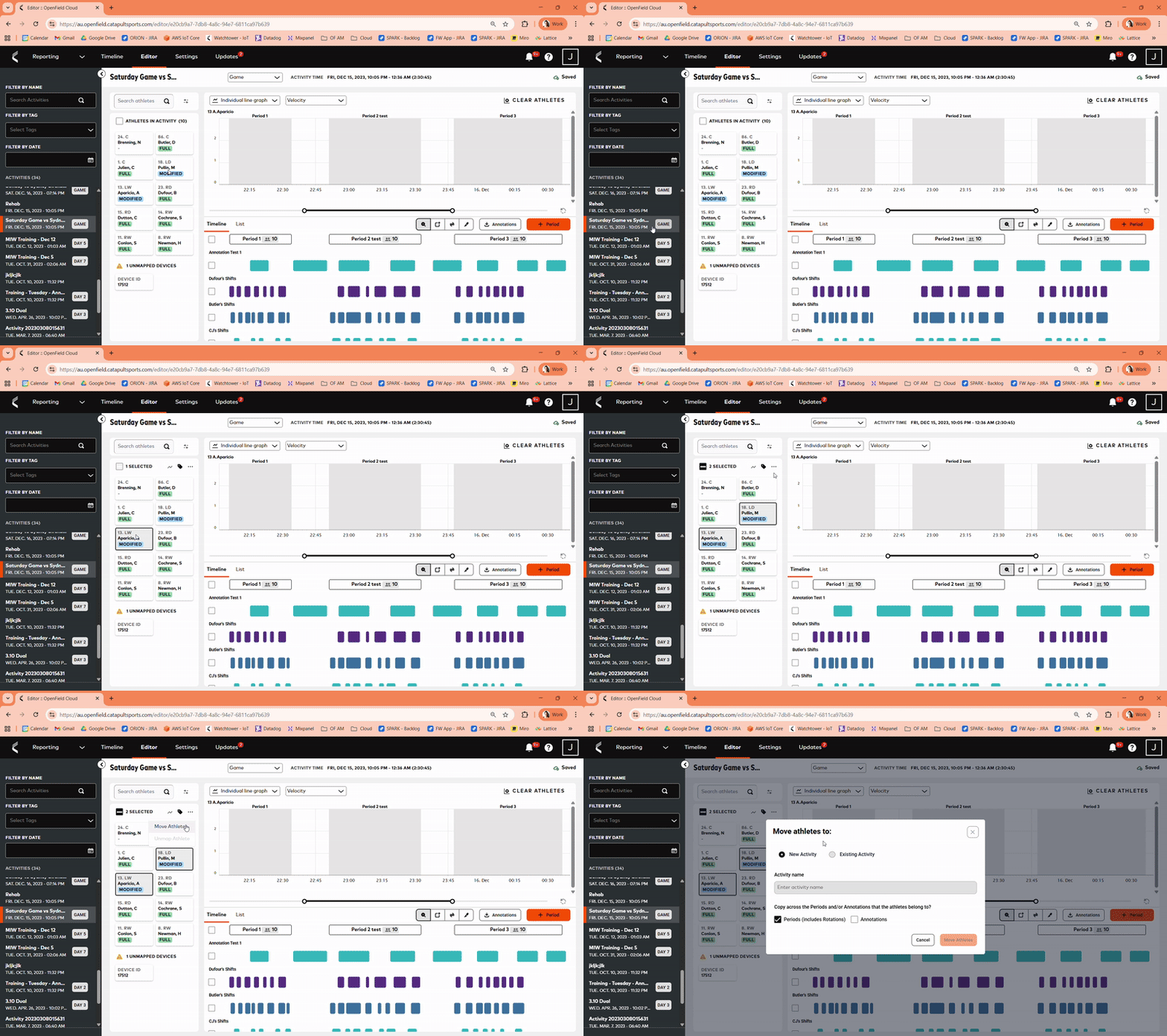
To move athletes:
- Navigate to the Editor tab in the OpenField Cloud.
- Select athletes or unmapped devices from the Athlete Panel.
- Click the '...' icon.
- Select 'Move Athletes'.
- Select New Activity or Existing Activity.
- If you choose New Activity, enter a name for it.
- If you choose Existing Activity, select the desired activity from the dropdown list.
Existing Activities that are available to move selected athletes to must overlap in time with the 'source' activity by at least 1 second.
- Check the ‘Periods (including Rotations)’ checkbox if you want to move the athletes along with their existing periods and any associated rotations from the current activity to the new or existing activity.
If this option is not selected, the athletes will still be removed from the source activity but will be placed into an auto created period in the new or existing activity instead.
- Check the 'Annotations' checkbox if you want to move the athletes along with their existing annotations from the current activity to the new or existing activity. The athletes will be removed from their annotations in the source activity.
- Select the 'Move Athletes' button to move athletes to desired activity
- Click the pop up notification in the bottom left of the screen to quickly navigate to the new Activity in the Editor